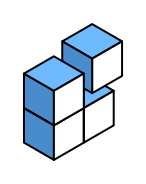
Isometric logos suggest depth without true perspective. Logo Lattice's isometric overlay angles every snap point along three axes, so you can sketch cube faces, stair steps, and layered blocks that feel dimensional.
Enable the isometric grid
- In the function bar, open Grid overlay and choose Isometric.
- Confirm placement is set to Snap - free placement hides the grid and is better for sketching, not precise iso geometry.
- Zoom out slightly with the scroll wheel so you can see several cells at once.
Build a cube face by face
With the Draw tool (1), click six vertices to outline one rhombus face. Close the shape, pick a fill colour, then draw the adjacent face beside it. Shared edges should land on the same grid lines - the snap makes matching edges straightforward.
Use contrasting fills for each visible face to sell the 3D effect. A common pattern is a light top face, medium left face, and darker right face.
When to use preset shapes
Hexagons and triangles on the isometric grid make strong arrowheads and roof peaks. Drag a hexagon with the Shape tool (5), then use Advanced select to tweak individual vertices if you need a custom silhouette.
Polish and export
- Corner fillets soften blocky iso marks - select a shape and drag the round handles at each corner.
- Cutout brush (scissor icon in the draw tool) can punch a window or door through a cube face.
- Open Export from the function bar and download SVG for sharp vectors, or PNG with optional background and corner radius.